Operations
Operations are the individual actions in a flow. They enable you to do things like manage data within Directus, transform the flow's data, send information off to outside services, set conditional logic, trigger other flows, and more.
Condition
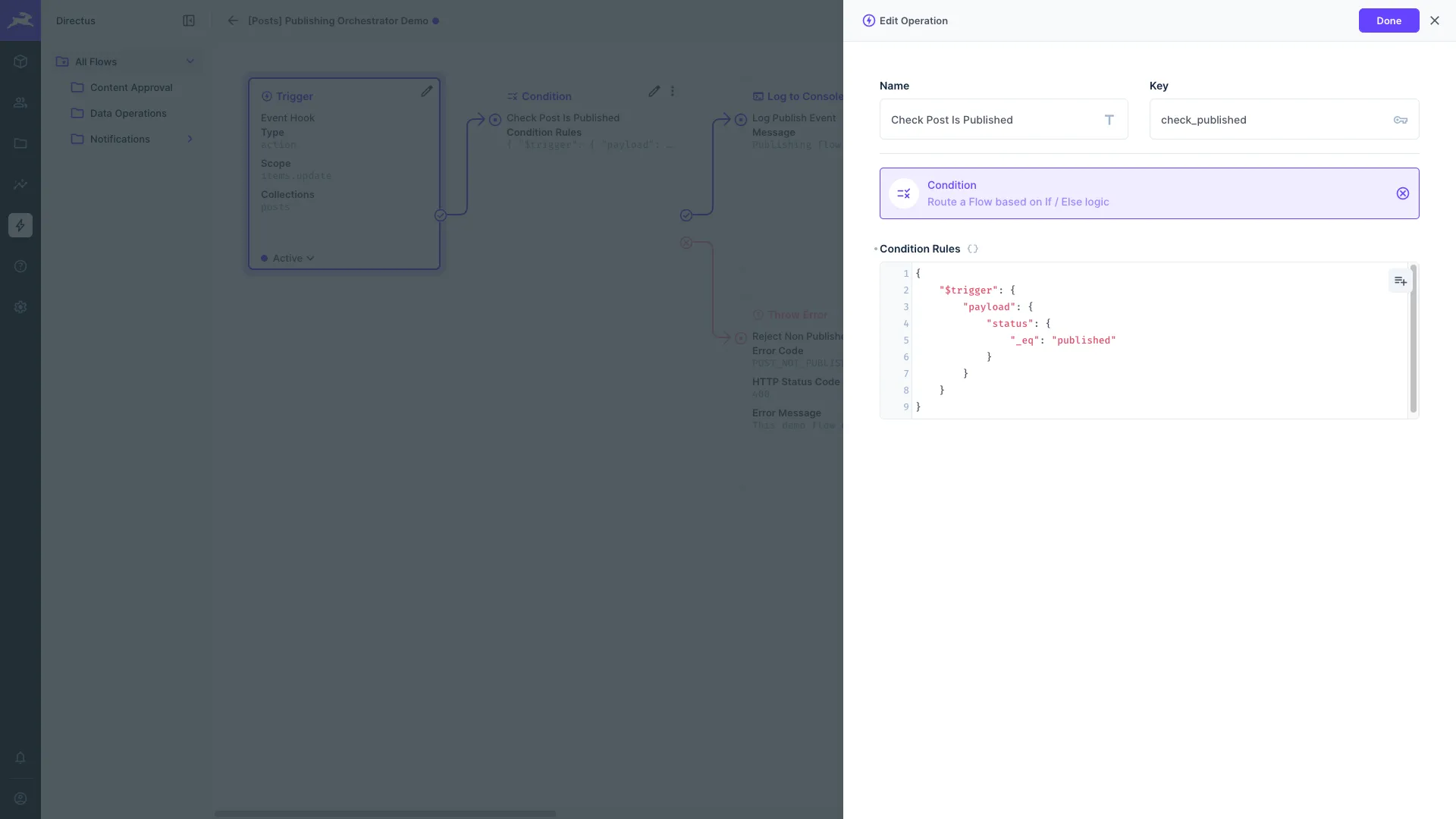
A condition operation lets you choose a success path or failure path by validating data passed into it with Filter Rules.
Options
- Condition Rules — Create conditions with Filter Rules.
Payload
This operation does not generate data. If the filter rule is configured properly, it will append a null value on its
operationKey, regardless of if the condition was met or not. However, if the filter rule is misconfigured, it will
append an array containing an object you can use to help debug the misconfiguration.
null), the condition takes the reject path regardless of the operator. To handle
fields that may be absent, use the inverse operator (such as _nnull) and place your logic on the reject path instead.reject path, it will cancel your database transaction.Run Script
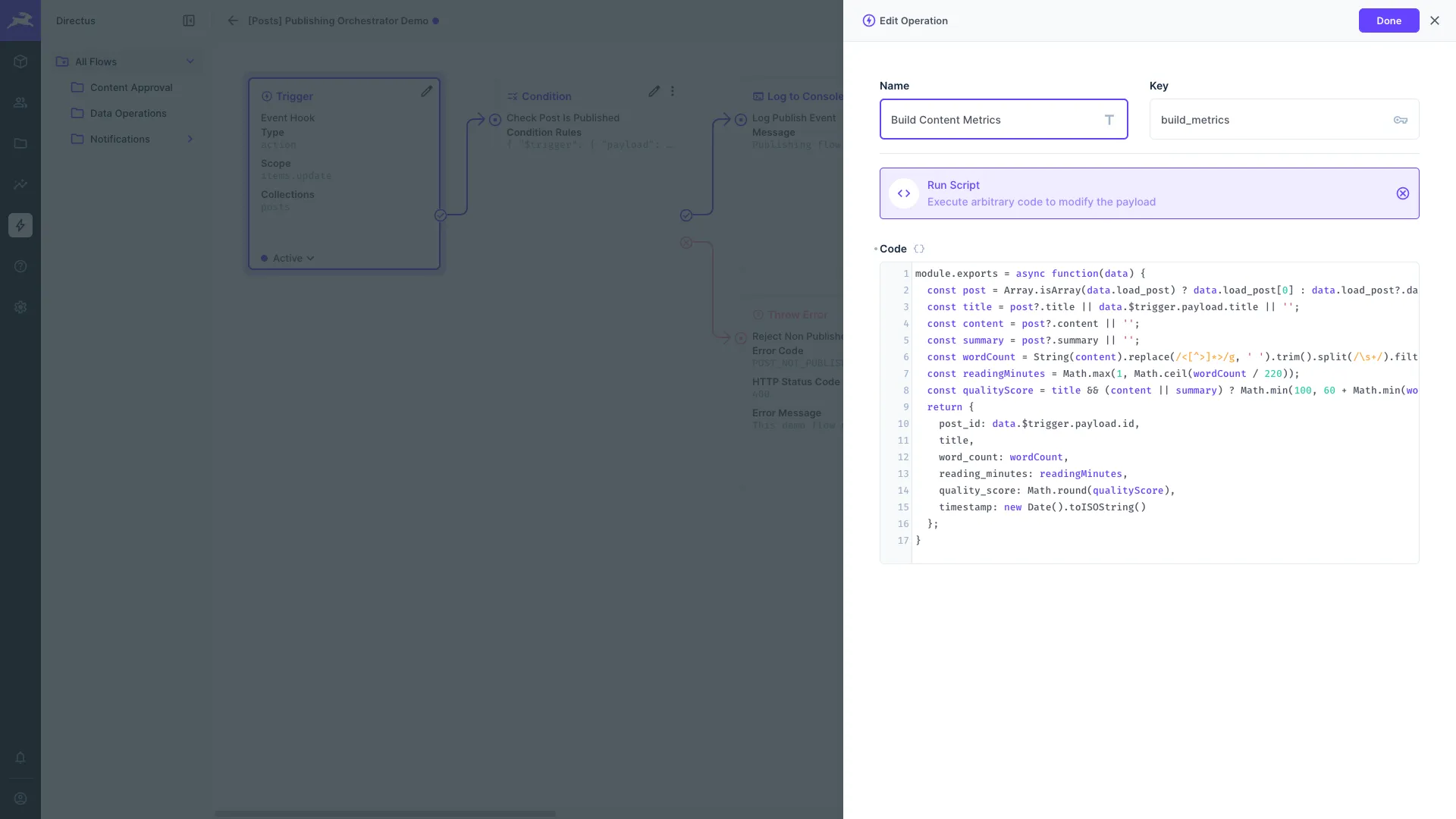
This operation lets you add a custom script using vanilla JavaScript or TypeScript. The script will be executed securely in an isolated sandbox. No interactions take place between the sandbox and the host except for sharing input and output values. This means, for example, no access to the file system and no ability to do network requests.
Options
The operation provides a default function template. The optional data parameter lets you pass in the data chain as
an argument.
Payload
The function's return value will be appended under its <operationKey>.
More Details
As an example, let's say you have this function in a script operation, named myScript.
// A key from the data chain
{
    "previousOperation": {
        "value": 5
    }
}
Then you add the following logic via Run Script.
// Your function in the myScript operation
module.exports = function (data) {
    return {
        timesTwo: data.previousOperation.value * 2,
    };
};
The returned value will be appended under the myScript operation key.
{
    "previousOperation": {
        "value": 5
    },
    "myScript": {
        "timesTwo": 10
    }
}
return value is valid JSON.Create Data
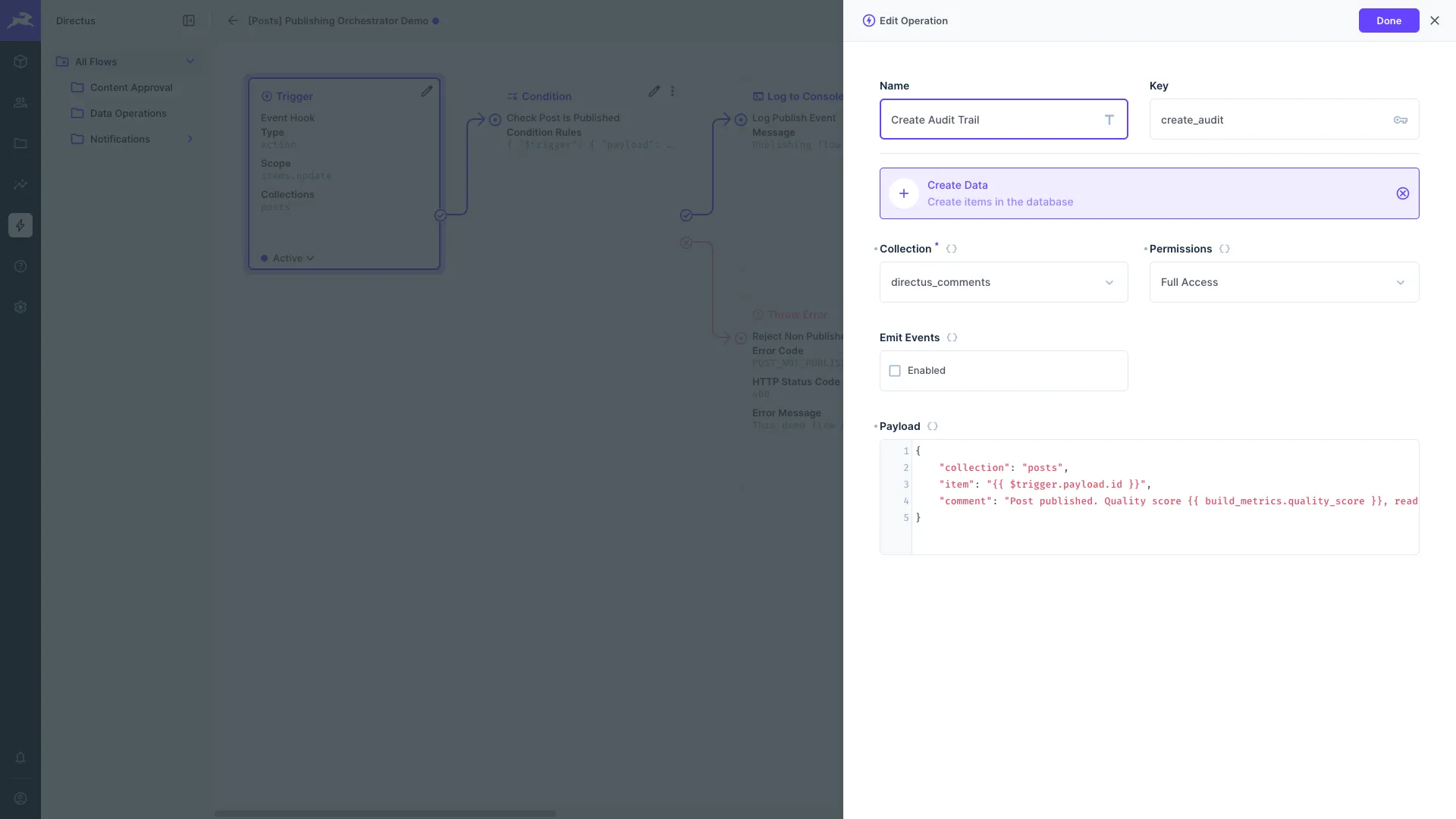
This operation creates item(s) in a collection.
Options
- Collection — Select the collection you'd like to create items in.
- Permissions — Select the scope of permissions used for this operation.
- Emit Events — Toggle whether the event is emitted.
- Payload — Defines the payload to create item(s) in a collection.
Payload
An array with the ID(s) of all items created will be appended under its <operationKey>.
Read Data
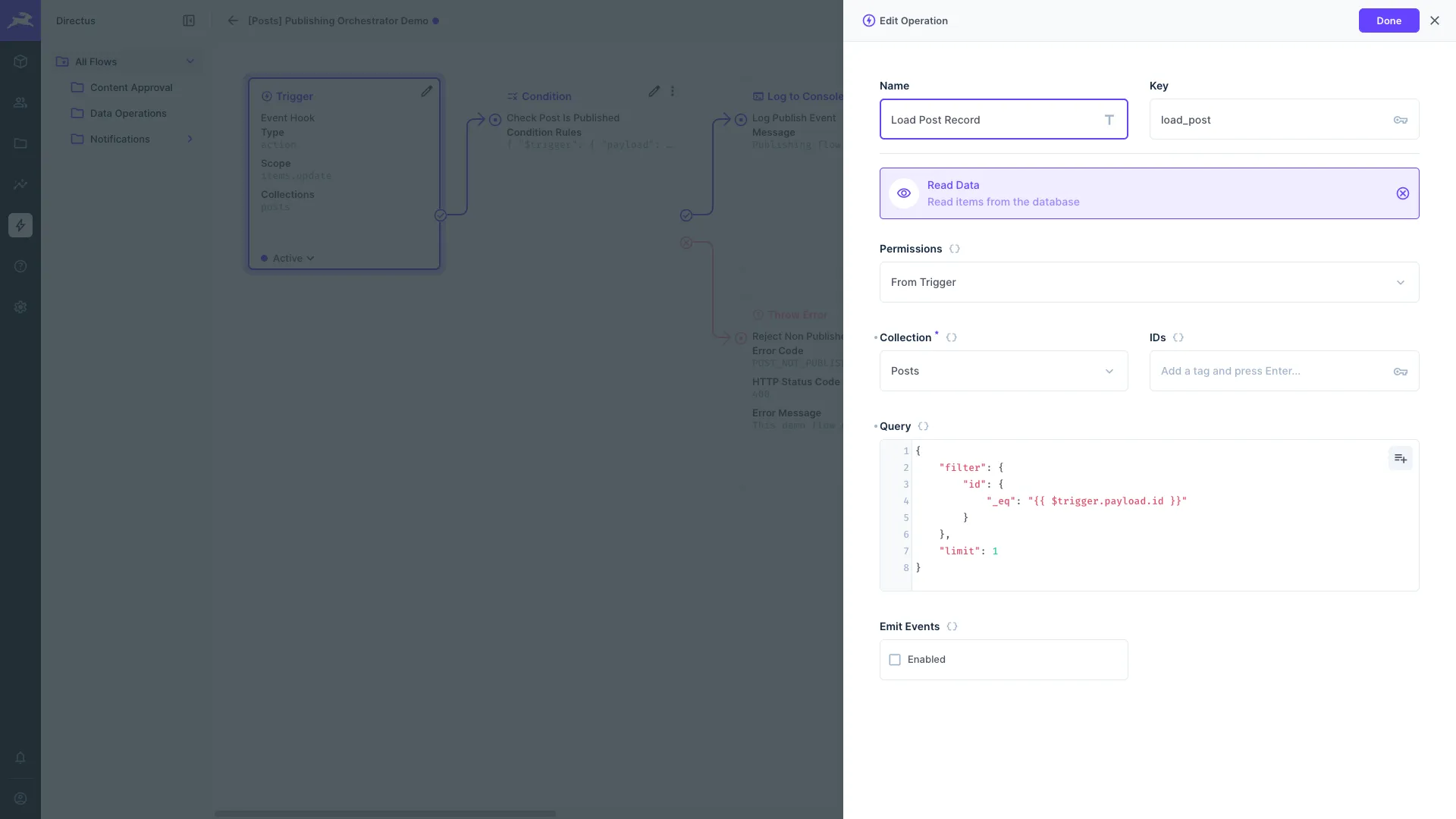
This operation reads items from a collection and adds them onto the data chain. You may select Items by their ID or by running a query.
Options
- Permissions — Set the scope of permissions used for this operation.
- Collections — Select the collection you'd like to read items from.
- IDs — Input the ID for items you wish to read and press enter. Click the ID to remove.
- Query — Select the items with a query. To learn more, see Filter Rules.
- Emit Events — Toggle whether the event is emitted.
Payload
An array containing all items read will be appended under its <operationKey>.
Update Data
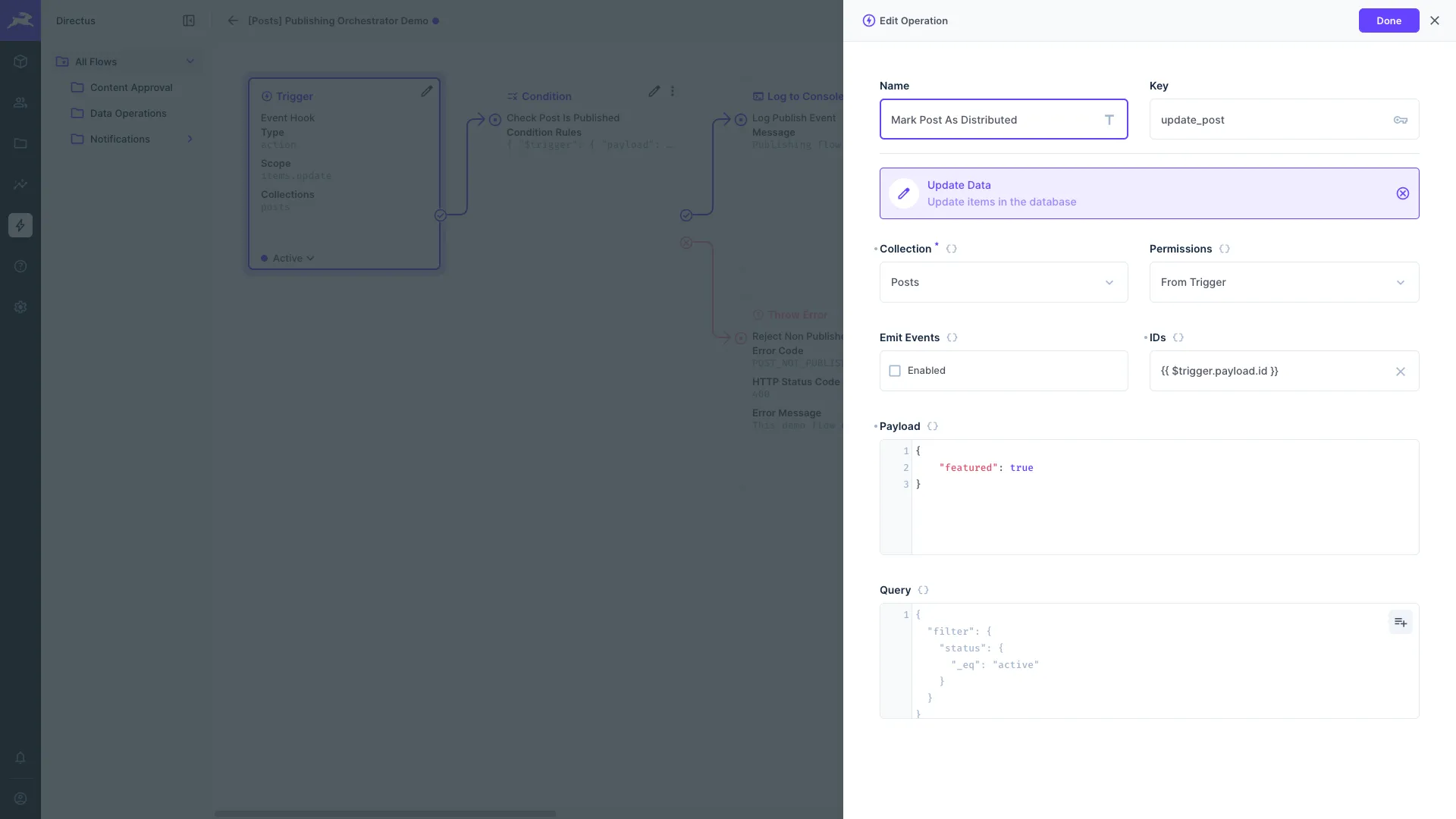
This operation updates item(s) in a collection. You may select item(s) to update by their ID or by running a query.
Options
- Collection — Select the collection on which you'd like to update items in.
- Permissions — Set the role that this operation will inherit permissions from.
- Emit Events — Toggle whether the event is emitted.
- IDs — Input the ID for Item(s) you wish to update and press enter. Click the ID to remove.
- Payload — Update Items in a collection, using one of the following formats:
- Single object with data, to update items specified in IDs or Query to the same values.
- Single object with keys and data, to update multiple items to the same values.
- Array of objects with data including primary keys, to update multiple items to different values.
- To learn more, see our Items API reference.
- Query — Select items to update with a query. To learn more, see Filter Rules.
Payload
An array containing all items updated will be appended under its <operationKey>.
payload requirements when updating an item, see our Items API reference.Delete Data
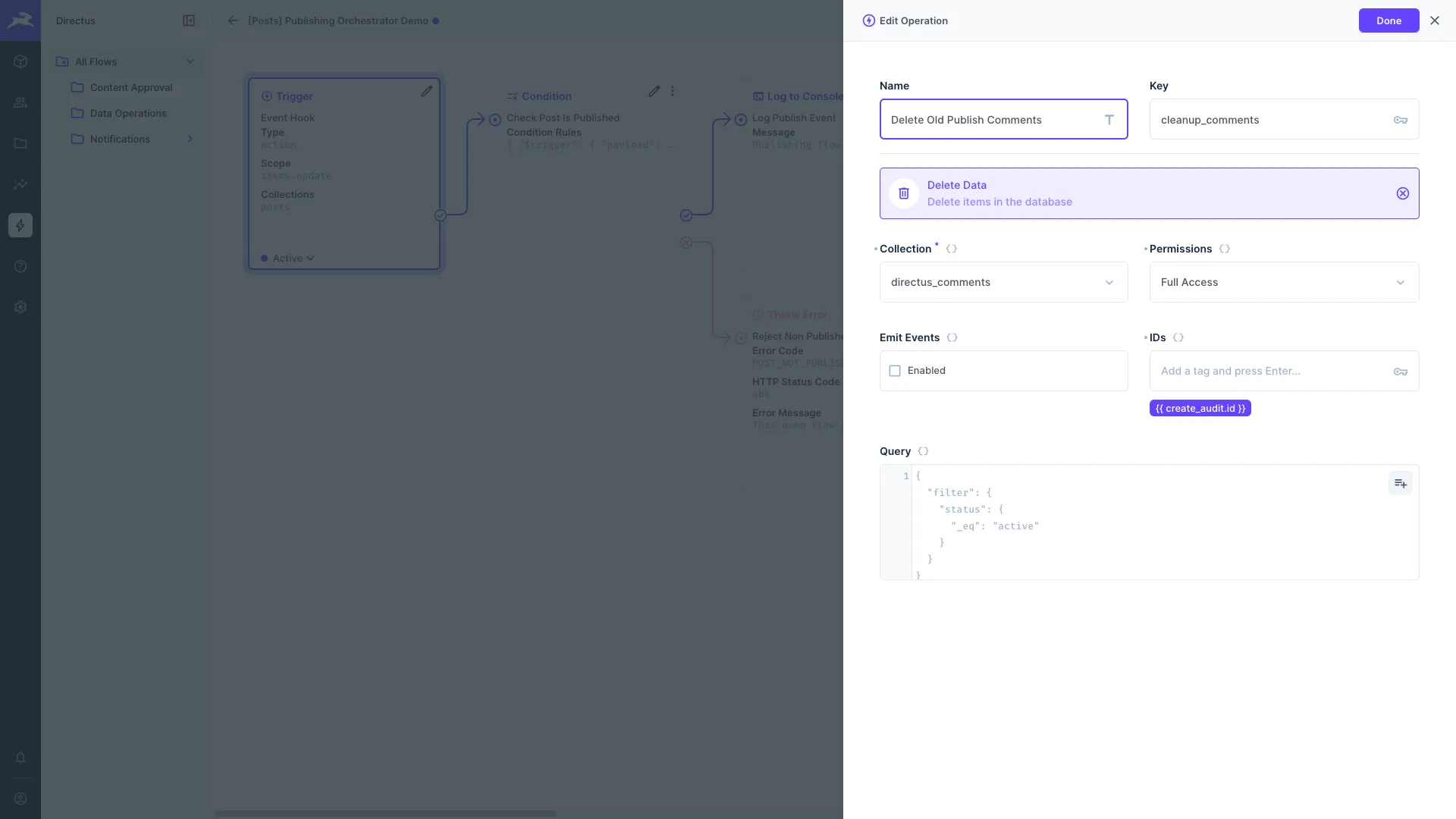
This operation deletes item(s) from a collection.
Options
- Collection — Select the collection you'd like to delete items from.
- Permissions — Set the scope of permissions used for this operation.
- Emit Events — Toggle whether the event is emitted.
- IDs — Set Item IDs and press enter to confirm. Click the ID to remove.
- Query — Select items to delete with a query. To learn more, see Filter Rules.
Payload
An array with the ID(s) of all items deleted will be appended under its <operationKey>.
JSON Web Token (JWT)
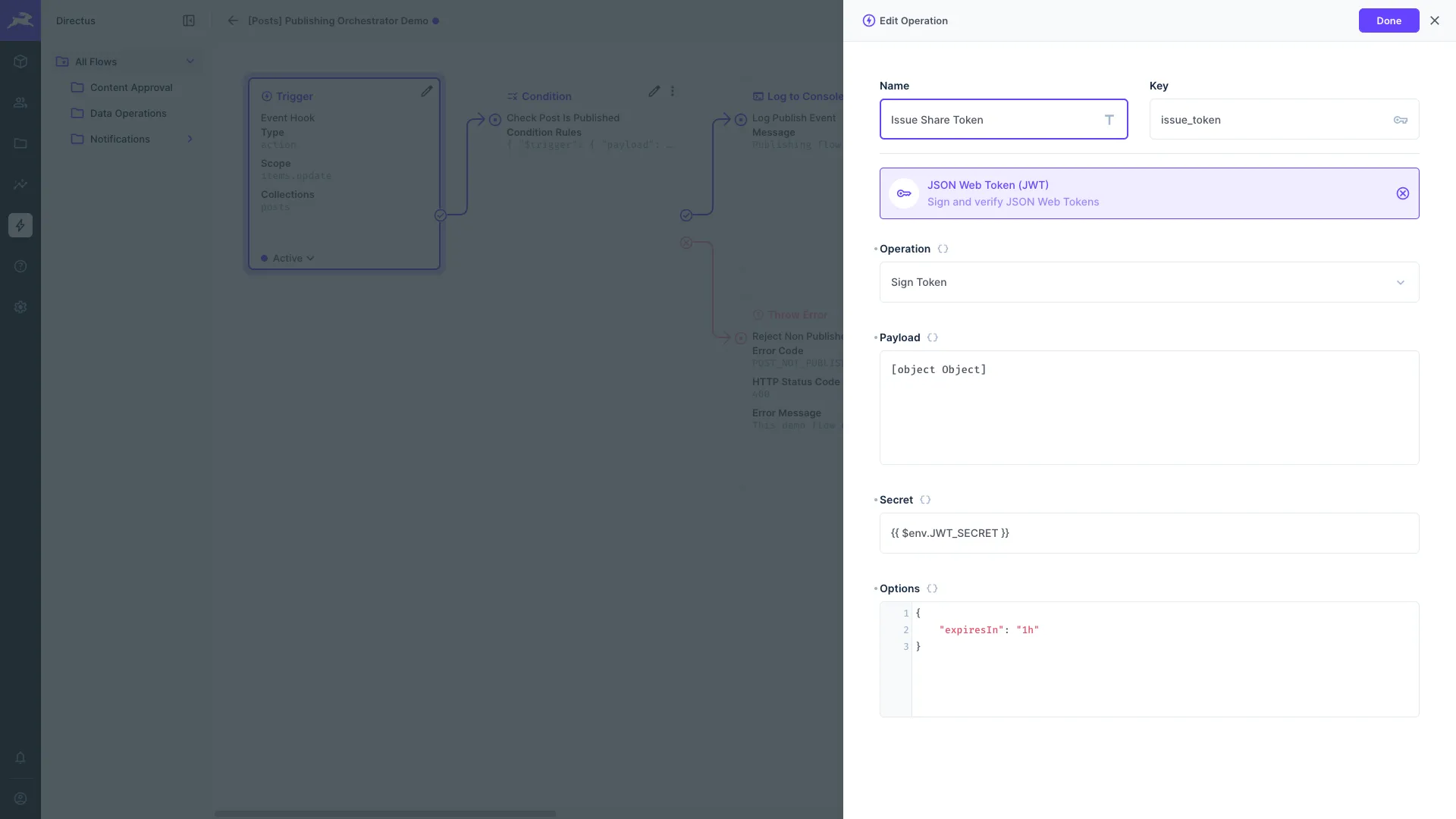
This operation lets you sign and verify a JSON Web Token (JWT) using the
jsonwebtoken package.
Options
- Operation — Select the operation you'd like to perform.
- Payload — The string or JSON payload to sign.
- Token — The JSON Web Token to verify or decode.
- Secret — The secret key used to sign or verify a token.
- Options — The options object provided to the operation. For the list of available options, see the
documentation of
jsonwebtoken.
Payload
Based on the operation selected, a JSON Web Token (JWT) or payload will be appended under its <operationKey>.
Log to Console
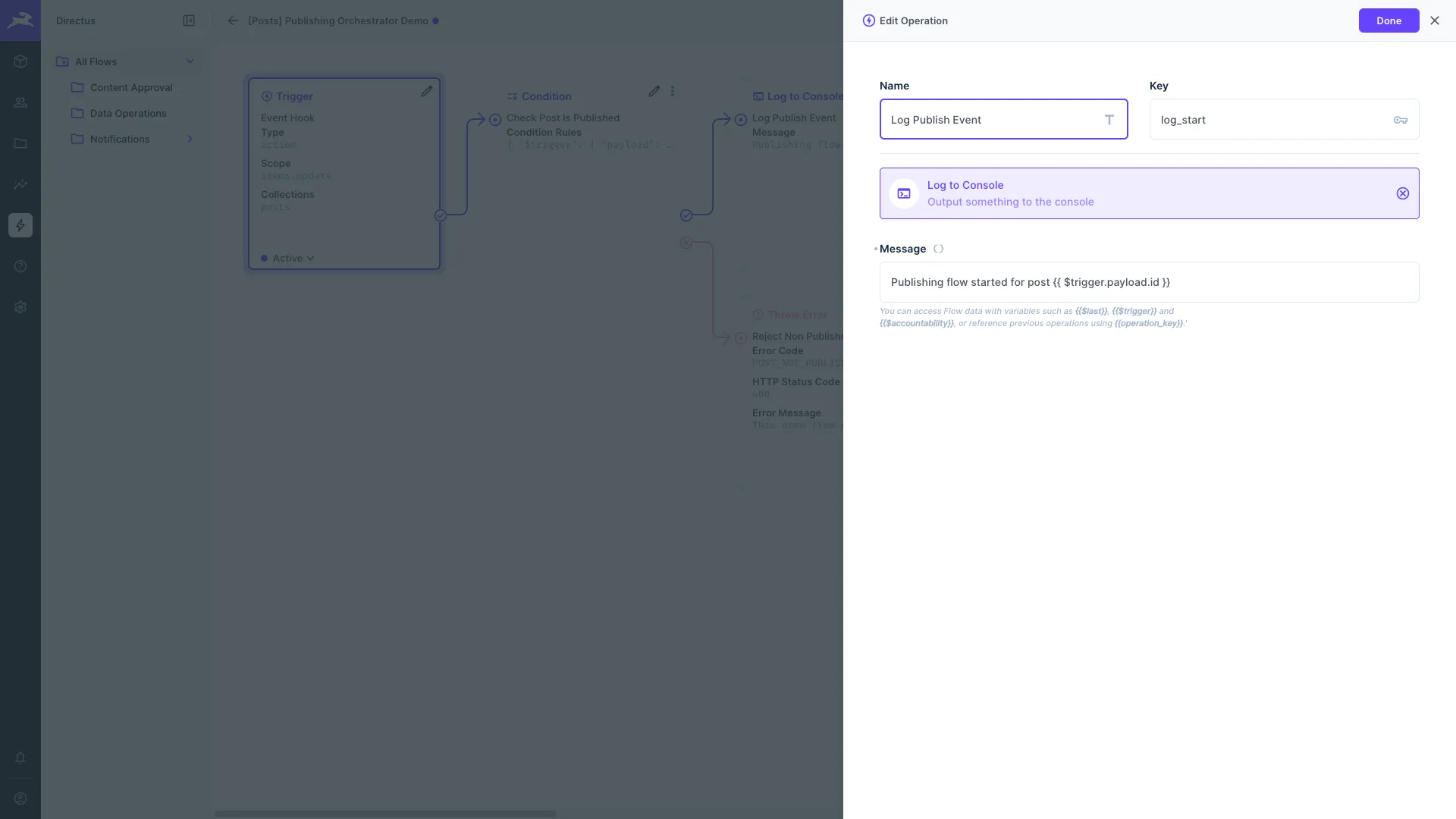
This operation outputs information to the server-side console as well as the Logs within the Data Studio. This is a key tool for troubleshooting flow configuration. A log operation's key will have a null value on the data chain.
Options
- Message — Sets a log message.
Payload
This operation does not generate data for the data chain as its messages are for debugging and troubleshooting. It will
append a null value on the operationKey.
Send Email
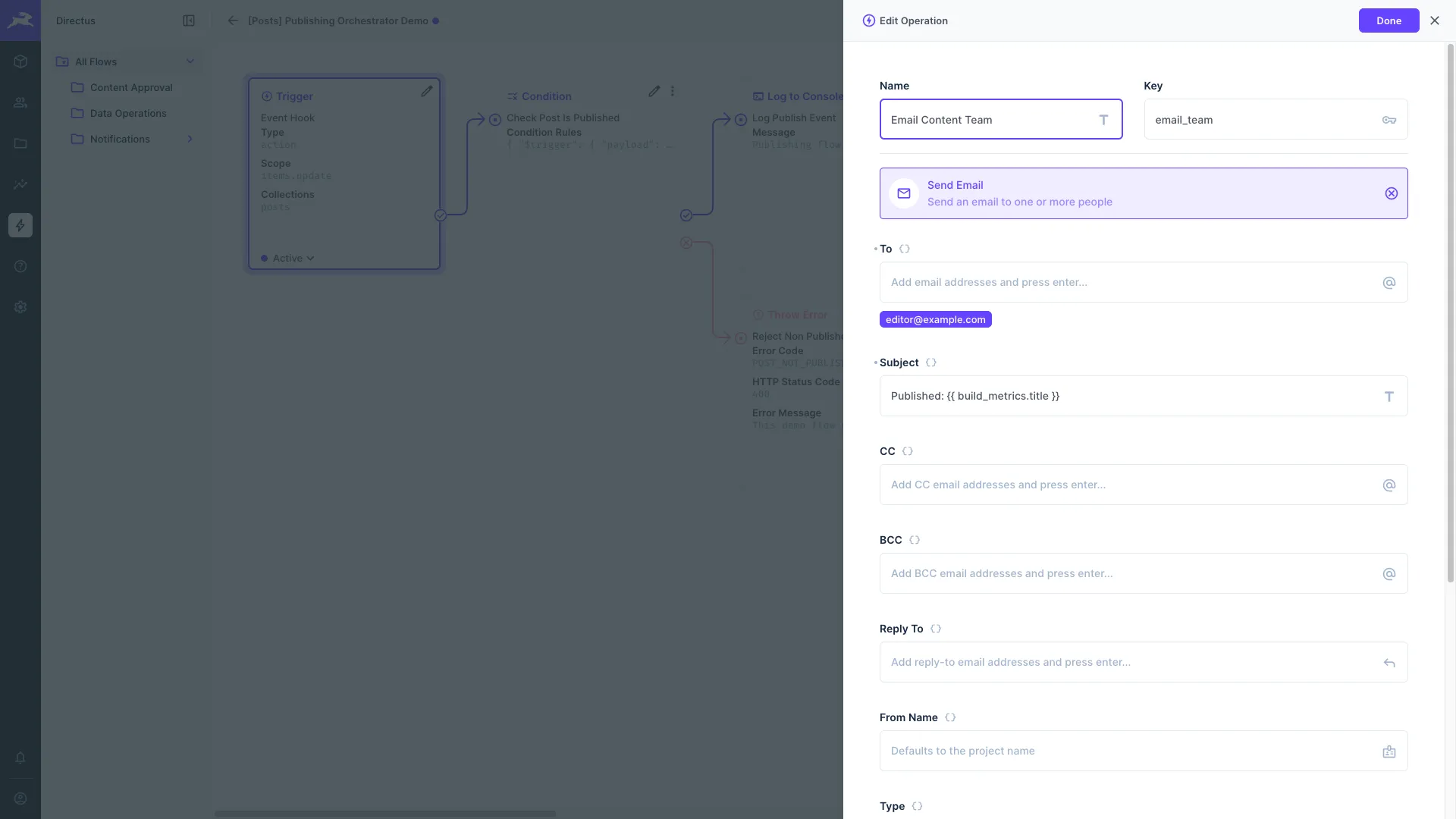
This operation sends emails off to one or more addresses specified.
Options
- To — The recipient email addresses1.
- Subject — The email subject line.
- CC — Email addresses to be copied1.
- BCC — Email addresses to be blind copied1.
- Reply To — The email address replies will be sent to1.
- From Name — The sender name shown to recipients. Defaults to the project name.
- Type — The email body format:
WYSIWYG,Markdown, orTemplate. - Body — Available for
WYSIWYGandMarkdowntypes. Use the editor to compose the email content. - Template — Available when the type is set to
Template. Select the template to use. - Data — Available when the type is set to
Template. Variables injected into the selected template.
1 These interfaces are tags.
Payload
This operation does not generate data for the data chain. It will append a null value on the operationKey.
More Details
To input option to send off multiple emails.localhost:8080, be sure to check your spam box, because your email provider
may send it there automatically.Send Notification
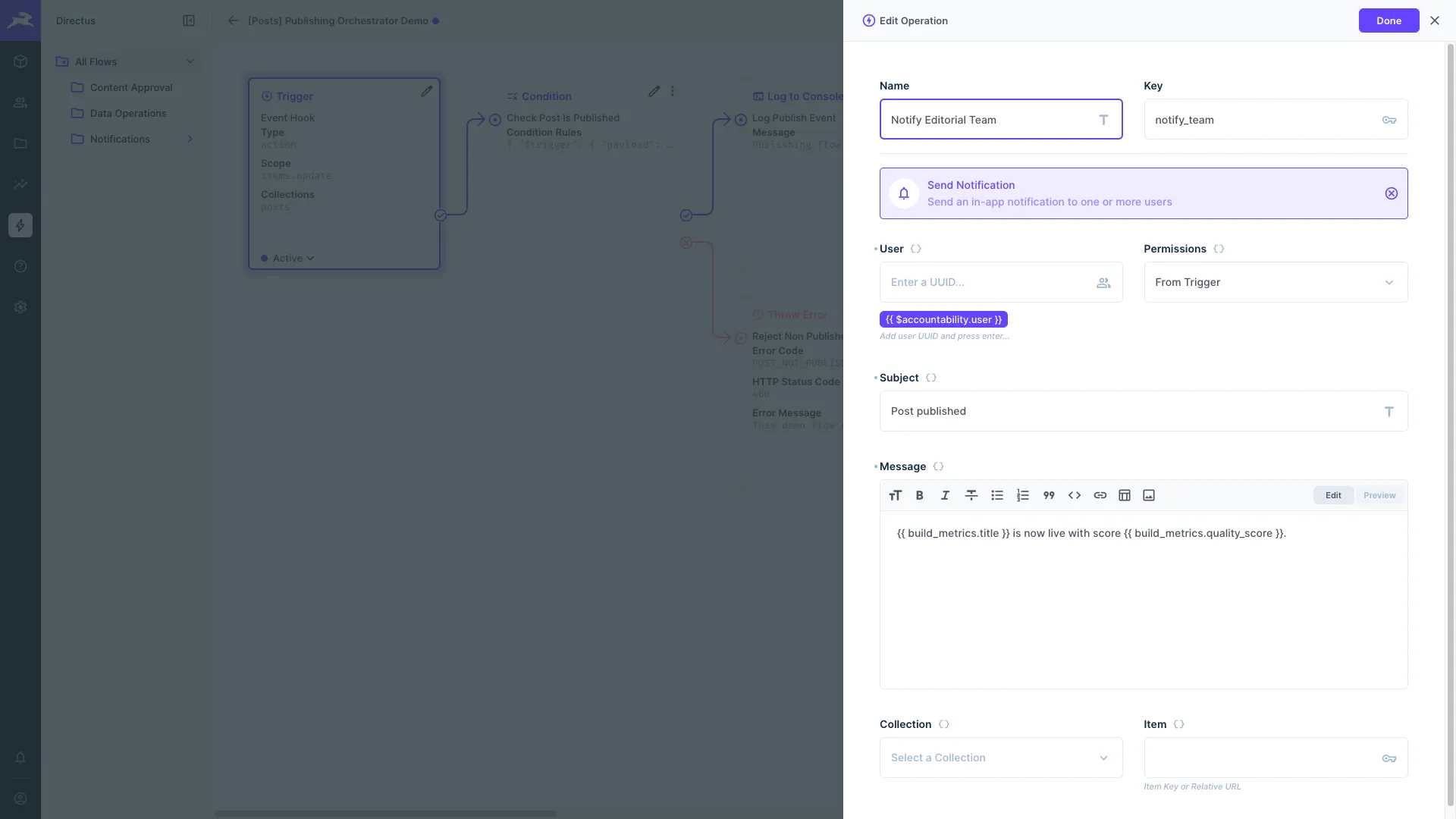
This operation pushes notifications to Directus Users. If the operation executes successfully, a list containing the IDs of all sent notifications generated is appended under this operation's key.
Options
- Users — Define a user by their UUID. Hit enter to save it. Click on a pill to remove it.
- Permissions — Define the role that this operation will inherit permissions from.
- Title — Set the title of the notification.
- Message — Set the main body of the notification.
Payload
This operation does not generate data. It will append a null value on its operationKey.
More Details
To input option to send off multiple notifications.Webhook / Request URL
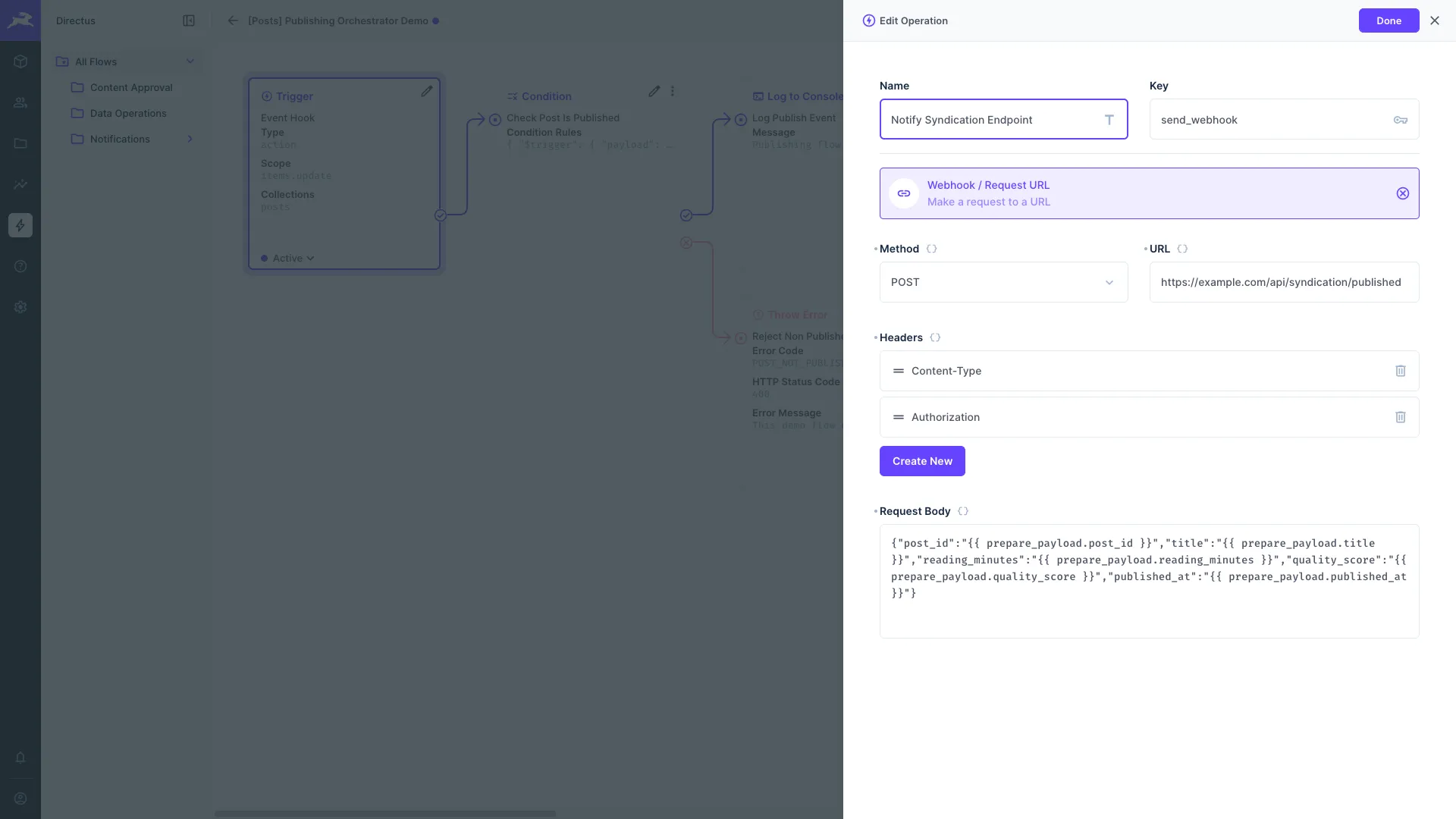
This operation makes a request to another URL.
Options
- Method — Choose to make a GET, POST, PATCH, DELETE, or other type of request.
- URL — Define the URL to send the request to.
- Headers — Create a new
header:valueto pass along with the request. - Request Body — Set the request body's data.
Payload
When an operation completes successfully, the response is appended under its <operationKey>.
Sleep
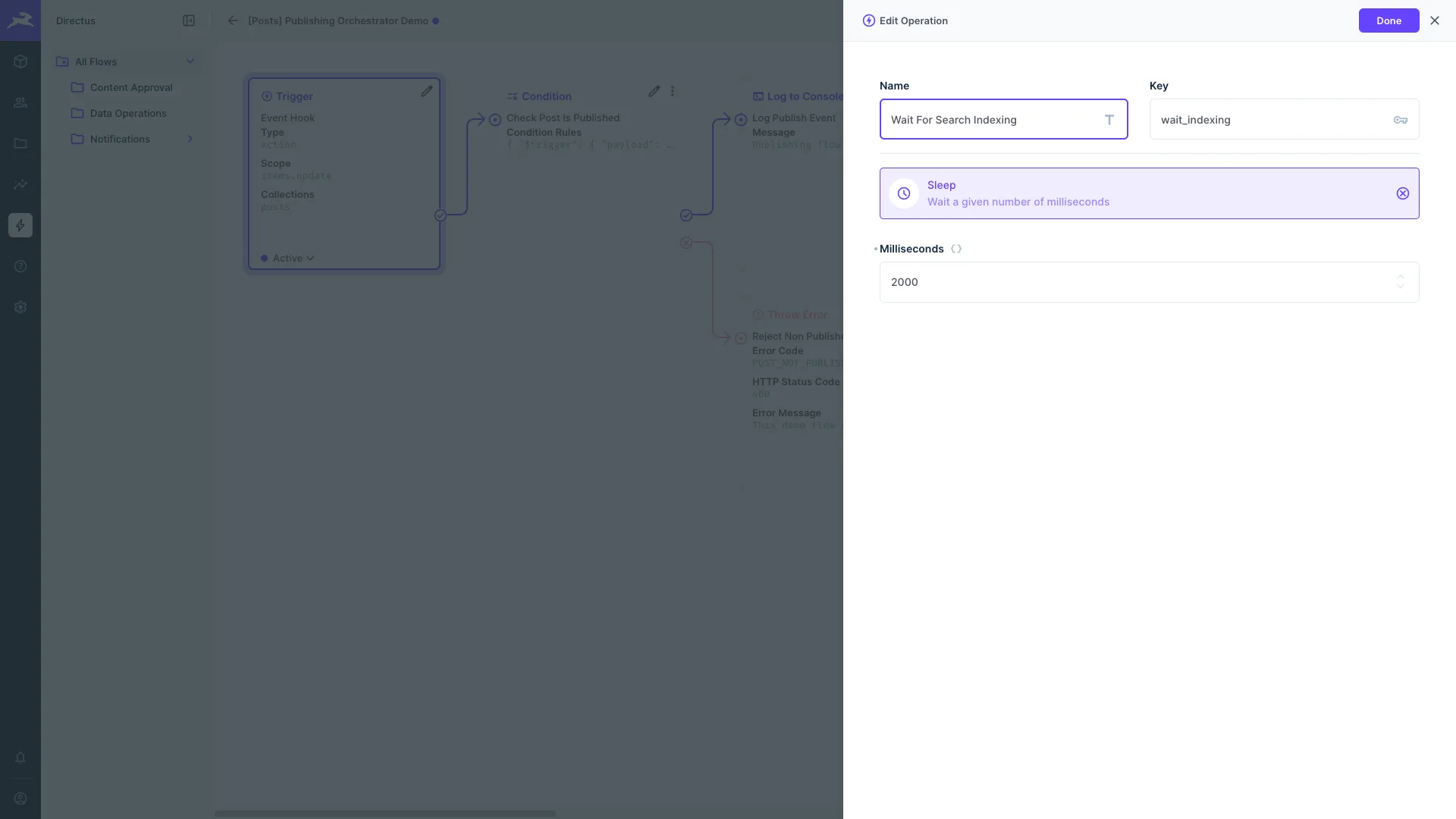
This operation creates a delay in the Flow for a given amount of milliseconds, then continues to the next operation.
Options
- Milliseconds — Define the number of milliseconds to sleep.
Payload
This operation does not generate data. It will append a null value on its operationKey.
Throw Error
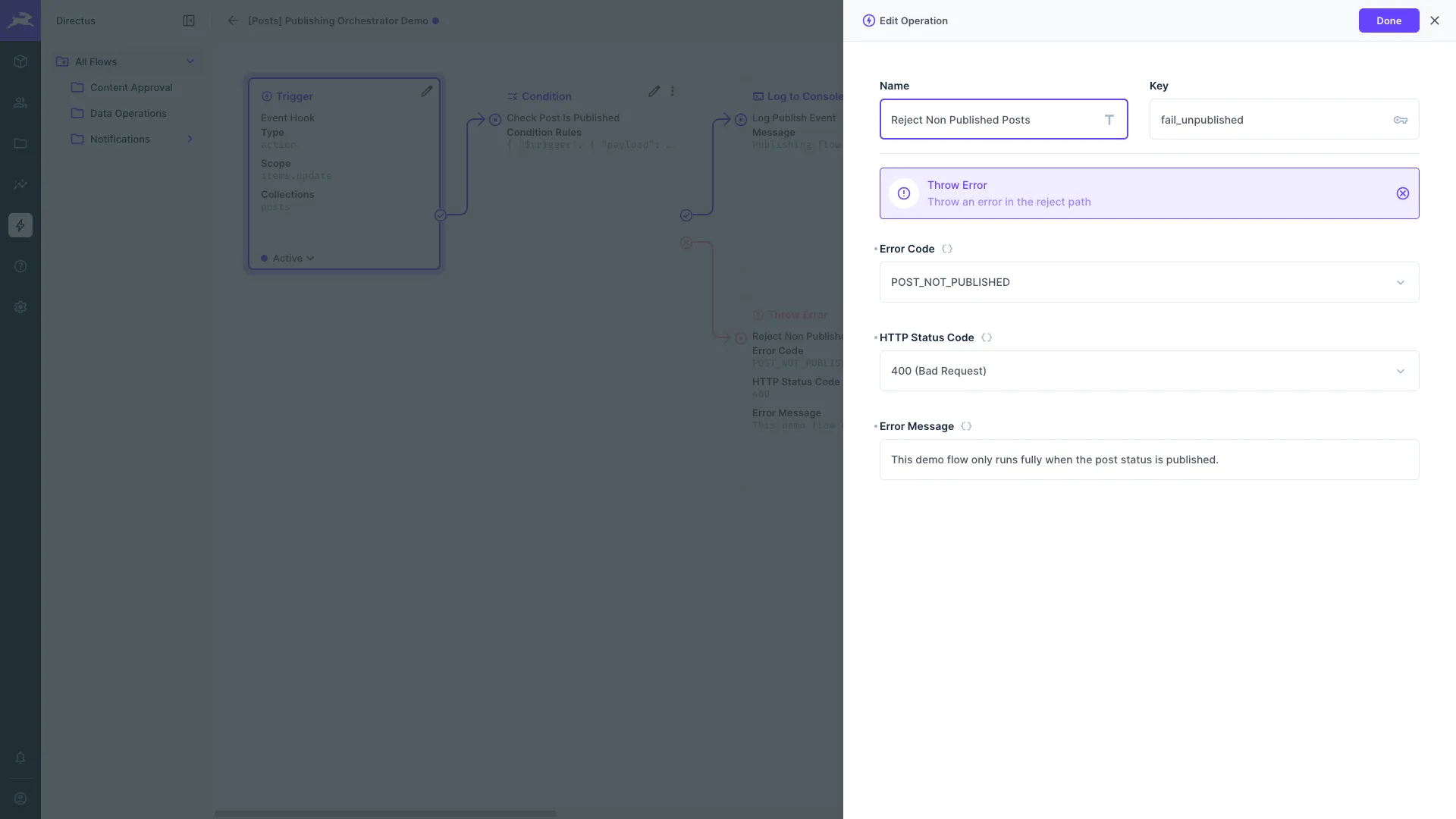
This operation throws a custom error to halt flow execution with a specific error code, HTTP status, and message.
Options
- Error Code — Select from predefined Directus error codes or enter a custom error code.
- HTTP Status Code — Choose the HTTP status code to return with the error.
- Error Message — Set a custom error message that describes the error condition.
Payload
This operation does not generate data. It immediately throws an error that halts flow execution.
Transform Payload
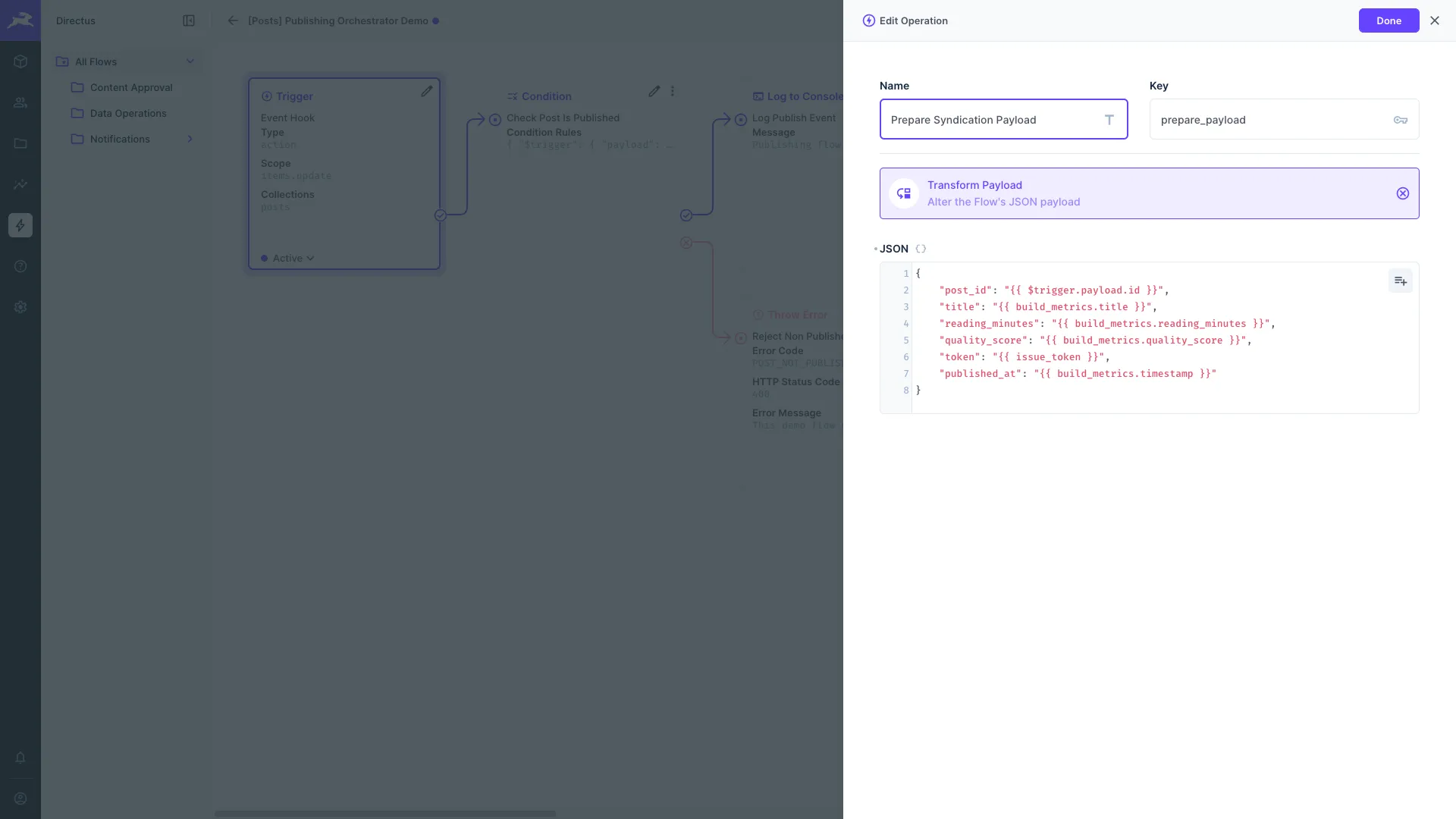
This operation lets you custom define your own JSON payload for use in subsequent operations. This enables you to take multiple sources of data and consolidate them into a single payload.
Options
- JSON — Define JSON to insert into the data chain.
Payload
When an operation completes successfully, the value you defined under the JSON configuration operation is appended
onto its operationKey.
Trigger Flow
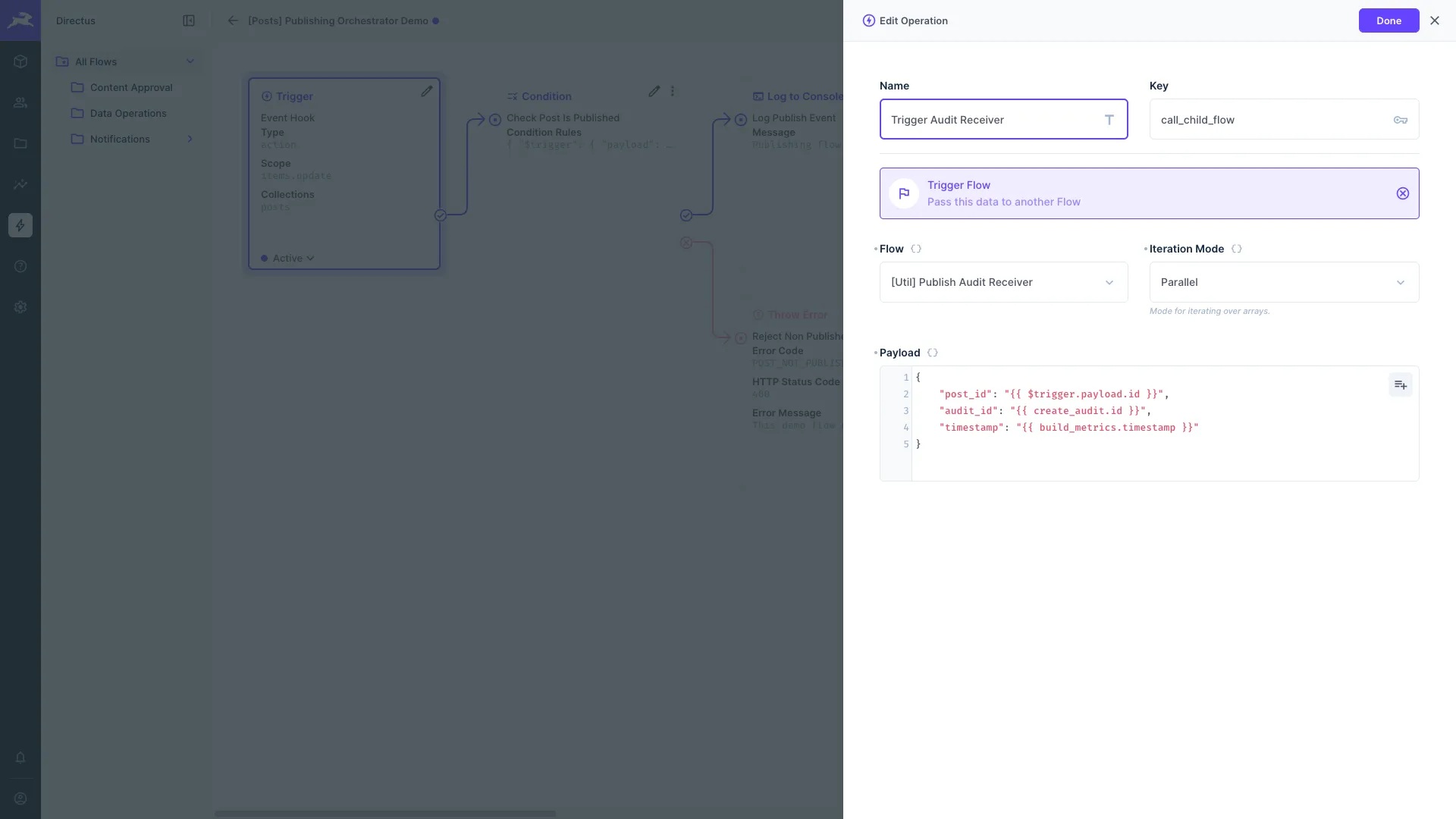
This operation starts another flow and (optionally) passes data into it. It should be used in combination with the Another Flow trigger.
Options
- Flow — Define a flow by its primary key UUID.
- Payload — Defines a JSON
payloadto pass into$triggeron the flow it triggered. - Iteration Mode - Specifies how triggered flows are executed. Supported modes are
Serial,Parallel, andBatch.Serial: Runs the selected flow for each item in the payload sequentially, starting the next only after the previous execution completes.Batch: Runs the selected flow for each item in the payload concurrently within a batch, starting the next batch only after the previous one completes.Parallel: Runs the selected flow for each item concurrently and waits for all executions to complete, with no guaranteed order.
- Batch Size - Available when
Iteration Modeis set toBatchit defines the number of items processed per batch.
Payload
If you've configured a response body in the trigger of the other flow, this will be appended under this
operationKey. If no response body is configured, null is appended under this operationKey.
More Details
AI Text
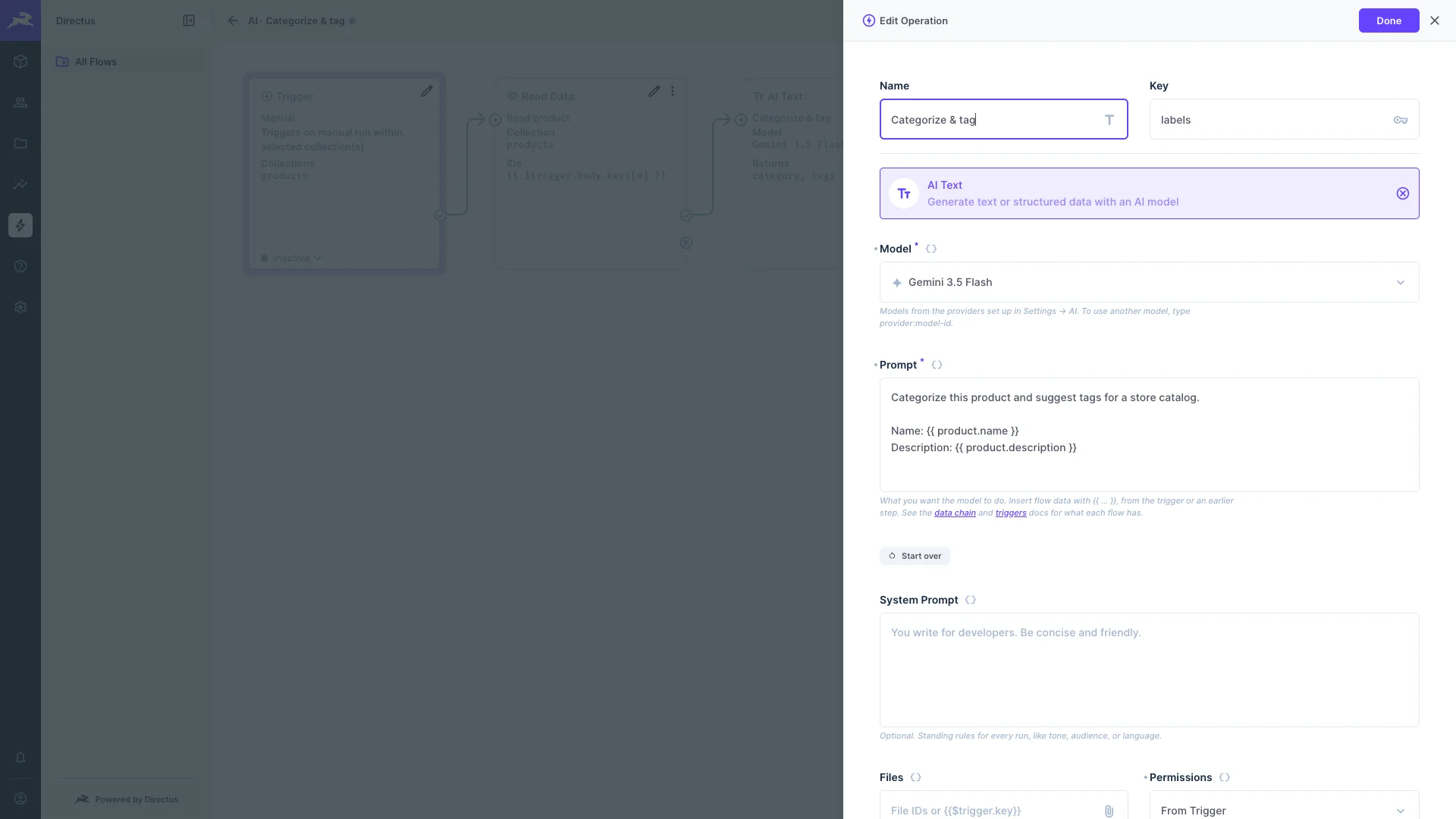
This operation sends a prompt to an AI model and appends the reply to the data chain. Use it to summarize, translate, categorize, or moderate content, write alt text for uploaded images, or pull named values out of text for later steps.
Options
- Model - The model to use. The list shows models from the providers set up in Settings → AI. To use a model that isn't listed, type
provider:model-id, such asopenai:gpt-5-mini. - Prompt - What the model should do. Insert data from the trigger or earlier steps with
{{ }}, such as{{ $trigger.payload.content }}. - System Prompt - Optional rules that apply to every run, such as tone, audience, or language.
- Files - Optional files for the model to read. Enter file IDs or a
{{ }}value, or pick files from the library. Hidden for models that can't read files. - Permissions - Whose access is used to read the files: From Trigger, Public Role, Full Access, or a specific role.
- Output - Text returns one string. Object returns named values that match the output schema.
- Max Output Tokens - Caps the length and cost of each run. Leave empty to use the model default.
- Output Schema - Available when Output is set to Object. Defines the values the model returns. See Output Schema.
When the prompt is empty, you can pick a starting point: Alt text & focal point, Summarize, Translate, Improve writing, SEO description, Categorize, or Moderate. A starting point fills in the prompt and, where it needs one, the output schema. Replace markers like [your content] with flow data before you save. The editor warns you while a marker is left in the prompt.
Output Schema
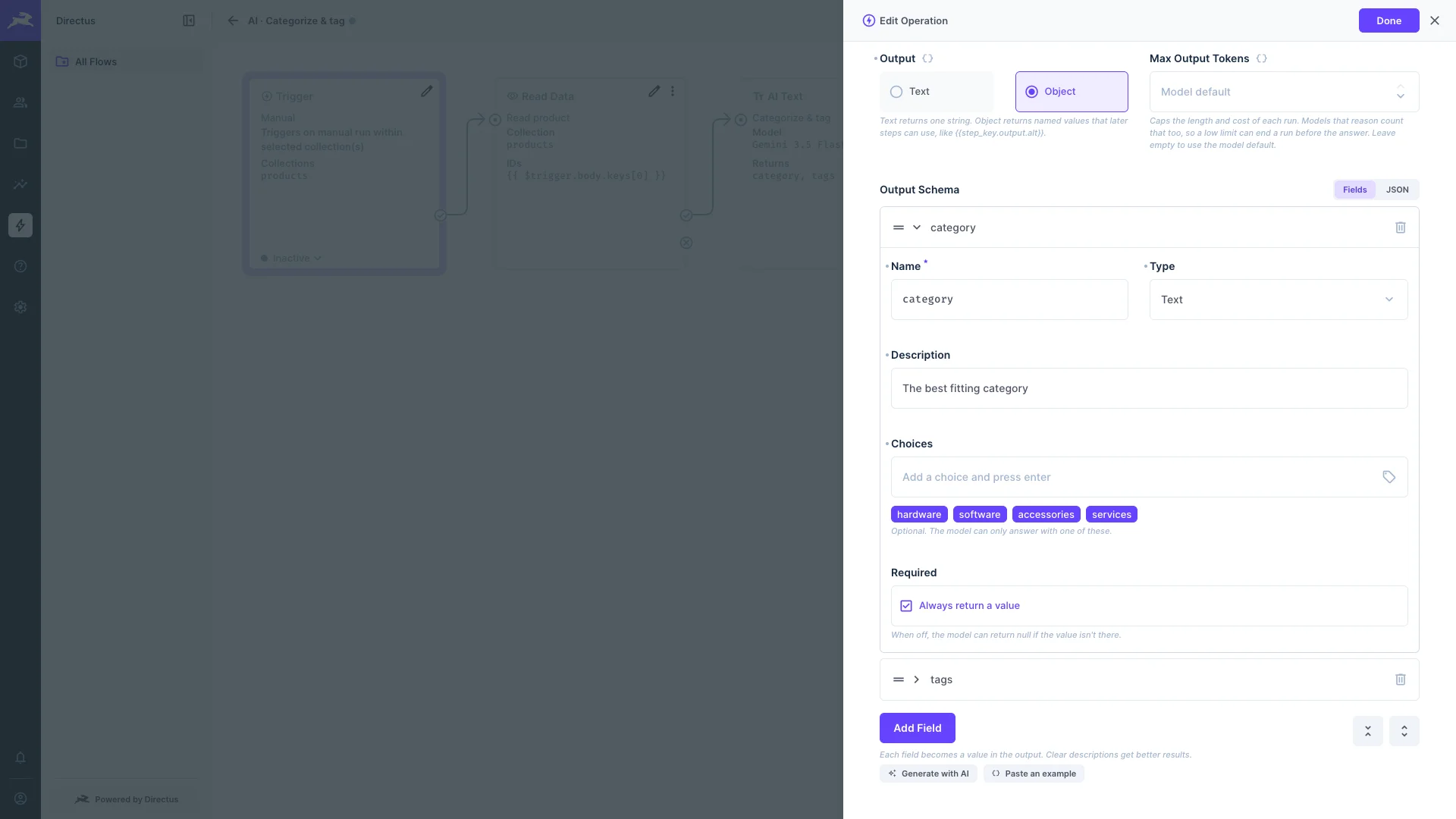
The output schema is a JSON Schema for an object. Edit it in either view, and changes in one show up in the other:
- Fields - Add one row per value. Each row has a name, a type, a description, and for text, an optional list of choices the model must pick from. Object and List of Objects rows hold fields of their own.
- JSON - Edit the JSON Schema directly. Use this view for schema features the Fields view can't show, like
$ref.
You can also build the schema from an example:
- Paste an example - Paste a sample of the object you want back. Text values become instructions for the model, and numbers and booleans set the type.
- Generate with AI - Describe the values you want, and the AI suggests fields. This needs a model allowed in Settings → AI.
Every field is returned. When Always return a value is off for a field, the model returns null if it can't find the value.
Payload
With Output set to Text, the reply is appended under its <operationKey> as text:
{
    "text": "Directus 12 adds AI steps to flows.",
    "model": "openai:gpt-5-mini",
    "usage": {
        "inputTokens": 412,
        "outputTokens": 58,
        "totalTokens": 470
    },
    "finishReason": "stop",
    "warnings": []
}
With Output set to Object, the values are under output instead of text. Use them in later steps with {{ <operationKey>.output.<field> }}, such as {{ categorize.output.category }}.
More Details
{{ $trigger.key }} is the uploaded file.password, token, and the AI API keys from Settings → AI in the trigger's payload or request body are replaced with --redacted--, along with authorization and cookie headers. Values returned by earlier steps aren't redacted. The Log to Console operation redacts the same fields.AI_ENABLED is set to false, AI Text and AI Image steps fail without calling the AI provider.AI Image
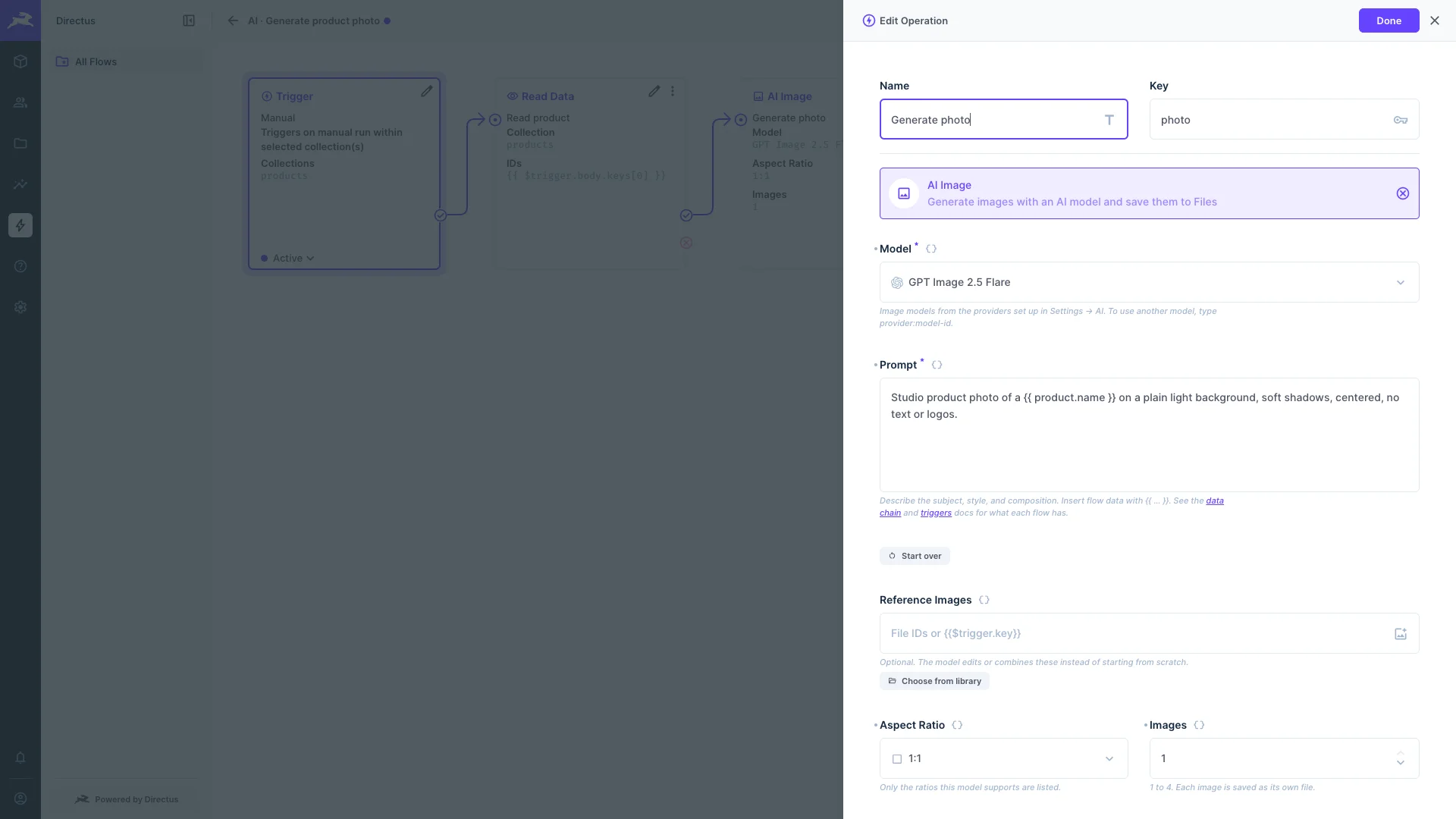
This operation generates images with an AI model and saves them to the file library. Use it to make article hero images, product shots, social cards, or icons, or to restyle an existing image.
Options
- Model - The image model to use. With an OpenRouter key, the list includes OpenRouter's current image models, with IDs like
openrouter:google/gemini-2.5-flash-image. To use a model that isn't listed, typeprovider:model-id. - Prompt - Describe the subject, style, and composition. Insert flow data with
{{ }}. - Reference Images - Optional PNG, JPEG, or WebP files. The model edits or combines them instead of starting from scratch. Some OpenRouter models ignore them. Enter file IDs or a
{{ }}value, or pick images from the library. - Aspect Ratio - Lists only the ratios the selected model supports. With reference images, Match reference image uses the shape of the first one.
- Images - How many images to make, from 1 to 4. Each image is saved as its own file.
- Quality - OpenAI models only. Higher quality costs more and takes longer.
- Background - Saves a PNG with a transparent background. Shown only for models that support it, and not for OpenRouter models.
- Folder - The folder to save the new files in.
- Permissions - Whose access is used to read reference images and save the new files: From Trigger, Public Role, Full Access, or a specific role.
- File Title - The title of the new files. Defaults to "AI image". Multiple images are numbered.
- Emit Events - Whether saving the files runs other flows that start on file uploads. Off by default.
When the prompt is empty, you can pick a starting point: Article hero, Product photo, Social card, Icon, or Restyle reference. Replace markers like [topic] with flow data before you save.
Payload
The IDs of the saved files are appended under its <operationKey> as files:
{
    "files": ["a1b2c3d4-0000-4000-8000-000000000001"],
    "model": "openai:gpt-image-2",
    "warnings": []
}
Use {{ <operationKey>.files[0] }} to set the image on an item in a later step.
More Details
warnings.Get once-a-month release notes & real‑world code tips...no fluff. 🐰